 Outstanding Tiny Desk AI
How to Make an Outstanding Tiny Desk AI Video from Photos
A practical guide to choosing portraits, casting each band seat, generating an Outstanding Tiny Desk AI video, and reviewing the result.
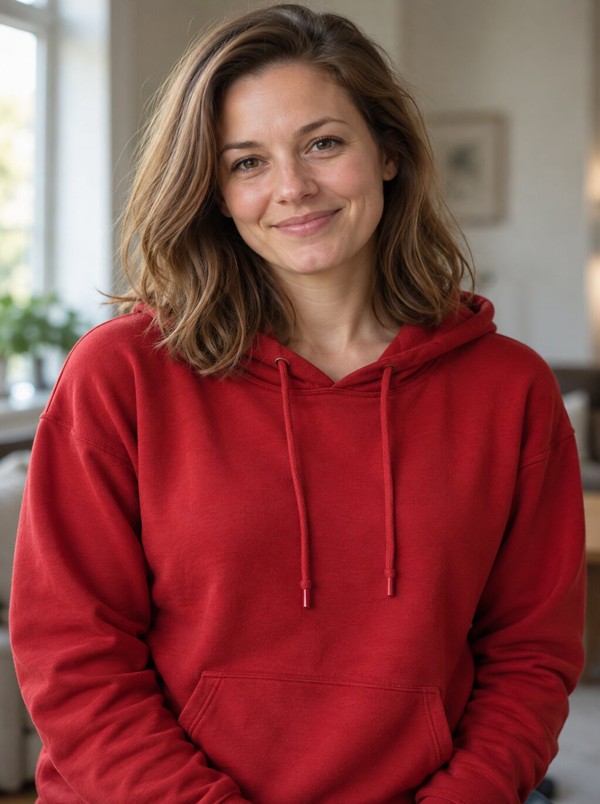
You can make an Outstanding Tiny Desk AI video without building a CapCut timeline or masking faces manually. The workflow is choose a cast, upload clear portraits, generate a new concert, and review the MP4 before posting.
See a verified website result
The five-person case on our homepage pairs five input portraits with the actual video generated by OutstandingTinyDesk.pro. It is a 15-second, 720p, 9:16 MP4 generated on October 29, 2026, and the task cost 10 credits. The separate social media references on that page are clearly labeled and were not generated by this website.
1. Choose the lead singer
The lead is the only required role. Use a shoulders-up portrait with one adult facing the camera. The eyes, nose, mouth, hairline, and jaw should be visible. Natural window light or soft indoor light usually preserves more facial detail than a dark nightclub photo or a harsh filter.
Avoid screenshots of screenshots, group photos, sunglasses, heavy makeup effects, and images where the face occupies only a small part of the frame. JPG, PNG, and WebP files up to 10 MB are supported by the upload form.
2. Add band members only when you need them
You can leave every other seat to an AI musician. If you want friends in the video, add a separate portrait for keys, sax, or either backing singer. All band member photos are free and do not require additional credits.
Use the same photo standard for every role. Do not upload one group image and expect the tool to know which person belongs in which seat. Separate inputs make the casting instruction unambiguous.
3. Select a quality level
Draft generates a 480p vertical video for reviewing composition. Standard generates 720p and is the better default for a final post. Both formats use the same 15-second, 9:16 concept and include original AI-generated music and vocals. A higher output resolution does not repair a blurry source portrait.
480p and 720p both cost 10 credits. Customizing only the lead costs 10 credits; customizing the full five-person band also costs 10 credits. The smallest pack is $9.99 for 10 credits, enough for one video with any cast size. Larger one-time packs provide 30 credits for $19.99 or 50 credits for $29.99.
4. Generate and wait for the task
After you confirm photo permission, the site uploads the images, creates a Seedance 2 task, and polls its status. Keep the result page open while the task is pending or processing. The service records a result only when the provider returns a video URL; a confirmed failure returns the task's credits automatically.
Processing time varies with the provider queue, and there is no fixed delivery-time guarantee. Avoid repeatedly submitting the same cast while a task is active, because each accepted task is a separate render.
5. Review before downloading or posting
Check face consistency, hands, instruments, lip movement, and unwanted identity blending. AI can produce a plausible video that still contains visual errors. Listen to the generated audio as well, and do not assume that every platform will treat synthetic music or voices identically.
When you post, disclose that the video is AI-generated. Keep it in parody or personal entertainment contexts, use only authorized photos and music, and do not imply that a real person performed at NPR.
If the result has visual problems
- Face likeness is weak: replace a dark, filtered, angled, or tightly cropped source with a sharp, front-facing, shoulders-up portrait.
- People or seats look mixed: use one adult per image and assign each person to the correct individual role rather than uploading a group photo.
- Hands or instruments look unusual: review the whole clip before posting; these are possible AI artifacts even when the face looks convincing.
- The task technically fails: the credits used by a confirmed failed task are returned automatically.
- The video completes but is creatively disappointing: automatic credit return does not apply. If the completed file is clearly broken, email support@outstandingtinydesk.pro with the task details for investigation.
There is no free pre-render or full-video preview. You can inspect your uploaded photo thumbnails before spending credits, then review the complete MP4 after a successful render.
Start your Outstanding Tiny Desk video, or learn what the Outstanding Tiny Desk format means.